Test before you escalate: reading nbn's Service Health result
Every provider knows the call. A customer's internet is "down", or "slow", or "dropping out every night around eight". The worst thing you can do is open a ticket with your wholesaler that says exactly that and wait.
The better first move takes about a minute: run nbn's own Service Health test against the line, and read what comes back.
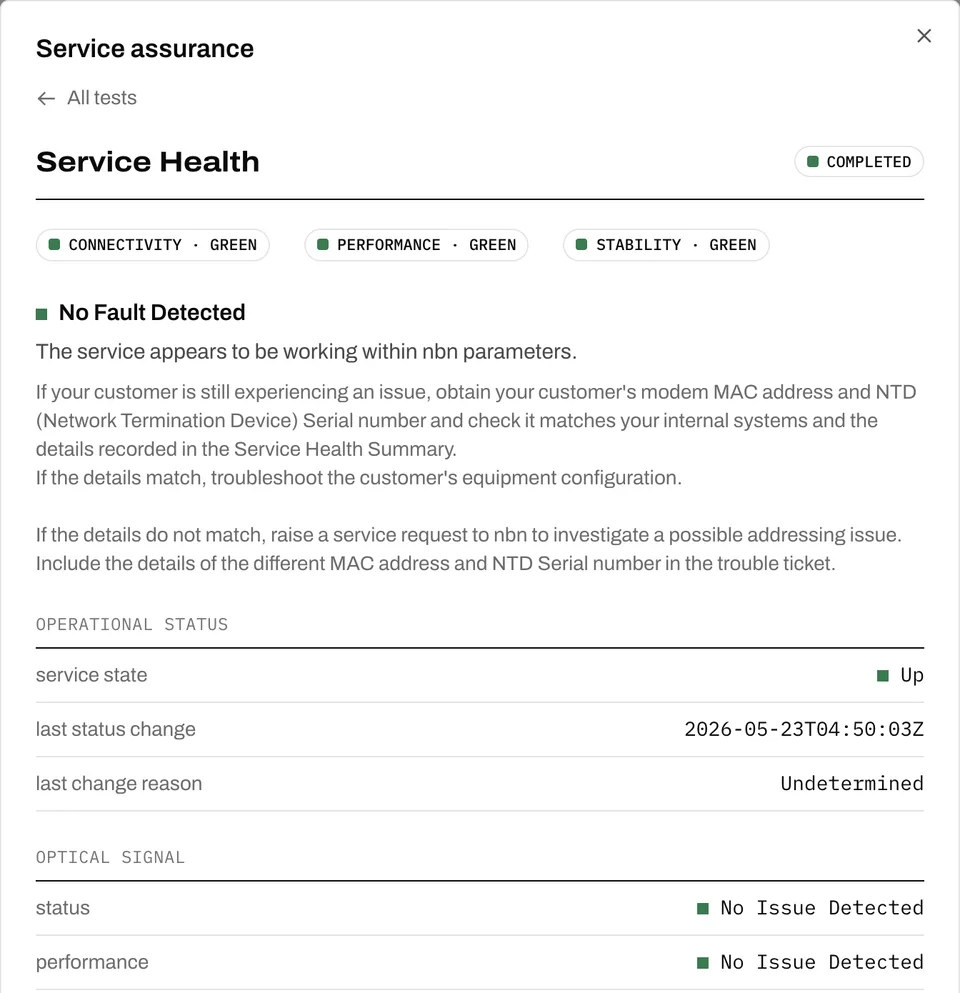
That's a real result from my own FTTP service, run from the Underlay portal. Here's how to read one.
The three lights
The top of the result is three ratings: connectivity, performance and stability. Green across the board means nbn thinks the access service is working within its parameters. nbn's own advice for a green result is blunt:
If your customer is still experiencing an issue, obtain your customer's modem MAC address and NTD (Network Termination Device) Serial number and check it matches your internal systems and the details recorded in the Service Health Summary. If the details match, troubleshoot the customer's equipment configuration.
In other words: green means look at the router, the Wi-Fi and the customer's own network before you push the fault upstream. It doesn't prove there's nothing wrong. It tells you where the evidence points.
Operational status
Service state, the time of the last status change, and nbn's reason for it. A recent status change that lines up with when the customer says their trouble started is worth noting in the ticket.
Optical signal
On fibre services, nbn reports whether it sees an issue with the optical signal and its performance. "No Issue Detected" on both rules out the most common physical-layer fault on FTTP.
CPE and NTD
The test reports the MAC address nbn sees on the customer's equipment, and the NTD: its ID, which data port is in use, whether the port is up, the negotiated speed and duplex, and the NTD's serial number.
This is where a surprising number of faults are found. If the MAC address isn't the customer's router, something else is plugged into the NTD. If the router is in the wrong UNI-D port, or the port has negotiated at 100 Mbps instead of 1000, you've found your "slow internet" without anyone leaving the office.
Dropouts
The dropout counters cover today, yesterday, two days, seven days and 30 days, and nbn splits them by cause. A customer who says "it drops out every night" and a result showing zero dropouts in 30 days is a different conversation from one showing dozens. Either way, you now have numbers instead of an impression.
Outage
Whether nbn has a current outage recorded against the service. If it has, there's nothing to troubleshoot at the customer's end. Tell them, and track the outage.
Why it matters
nbn fixes faults on nbn's timeline. Nobody can make that faster. What you control is the quality of what you send them: a ticket with the test result attached, and the obvious causes already ruled out, is a ticket that doesn't bounce back asking for the information you could have sent in the first place.
That's why on Underlay these tests aren't something you ask us to run. Run Service Health, NTD status and UNI-D status yourself, from the portal or through the API, while your customer is still on the phone. If it needs us, an engineer picks it up, with the same result in front of them.